
Keeping files directly in the database would be quite difficult. Therefore, it is better to read the data from the excel file and keep it in the database and create an excel file by pulling the data from the database when needed.
Apache POI is a powerful library for handling Microsoft Office files (Excel, Word, etc.) with Java applications. In this article, I will provide a basic guide on how to read and write Excel files.
We will make an example application: First we will get an Excel file in MultipartFile format, then we will parse this file, process it and create it again as an Excel file.
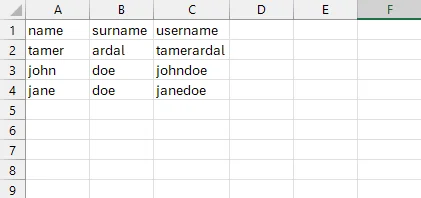
Contents of the Excel File
Adding Dependencies
First you need to add the POI library to your Maven project. Add the following dependencies to your pom.xml file:
<dependency>
    <groupId>org.apache.poi</groupId>
    <artifactId>poi-ooxml</artifactId>
    <version>5.2.2</version> <!-- Check the version -->
</dependency>
Model and Repository Setup
UserEntity will be the table where we will keep the data we read from excel. FileEntity is the table where we will keep information about the file. In this way, we will also proceed in accordance with SQL Normalization.
@Entity
public class UserEntity {

    @Id
    @GeneratedValue(strategy = GenerationType.IDENTITY)
    private Long id;

    private Long fileId;

    private String name;
    private String surname;
    private String username;

    // getters, setters
}@Entity
public class FileEntity {
@Id
@GeneratedValue(strategy = GenerationType.IDENTITY)
private Long id;
private String title;
private Date createdDate;
// getters, setters
}We define the JPA repositories:
@Repository
public interface UserRepository extends JpaRepository<UserEntity, Long> {
    List<UserEntity> findByFileId(Long fileId);
}@Repository
public interface FileRepository extends JpaRepository<FileEntity, Long> {
}We will create an layer to avoid making requests directly to the repository from the service class.
We cannot know how many rows there will be in the Excel file. Therefore, saving one by one may overload the database. With JPA’s saveAll method, we can add all records at once.
public interface UserDataService{
    void saveAll(List<UserEntity> entities);

    List<UserEntity> findByFileId(Long fileId);
}

@Service
public class UserDataServiceImpl impl UserDataService{
    private final UserRepository repository;

    public void saveAll(List<UserEntity> entities) {
         repository.saveAll(entities)
    }

    public List<UserEntity> findByFileId(Long fileId) {
        repository.findByFileId(fileId);
    }
}public interface FileDataService{
void save(FileEntity entity);
}
@Service
public class FileDataServiceImpl impl FileDataService{
private final FileRepository repository;
public void save(FileEntity entity) {
repository.save(entity)
}
}Uploading Excel File
We will upload the Excel file uploaded by the user in a RestController class. For this we will use the @PostMapping annotation:
@RestController
@RequestMapping("/user")
@RequiredArgsConstructor
public class UserController {
    private final UserService userService;

    @PostMapping("/upload")
    public ResponseEntity upload(MultipartFile file) {
         excelService.upload(file);
         return ResponseEntity.ok();

    }
}
Parsing Excel File
The service class is where we will do our actual processing. Here we will open the file we received and read the data in it line by line. Then we will save this data to a list with UserEntity. Finally, we will add this list to the database.
public interface UserService{
    void upload(MultipartFile file);
}

@Service
public class UserServiceImpl impl UserService{
    private final UserDataService dataService;
    private final FileDataService fileDataService;

    public void upload(MultipartFile file) throws IOException {
        // 1. Open Excel File with InputStream
        try (InputStream in= file.getInputStream()) {
            Workbook workbook = new XSSFWorkbook(in);
            Sheet sheet = workbook.getSheetAt(0);

            Row header = sheet.getRow(0);

            if (Objects.isNull(header) || header.getPhysicalNumberOfCells != 3)
                throw new SomeException(...);

            if (!"name".equalsIgnoreCase(header.getCell(0).getStringCellValue())
                    || !"surname".equalsIgnoreCase(header.getCell(0).getStringCellValue())
                    || !"username".equalsIgnoreCase(header.getCell(0).getStringCellValue()))
                throw new SomeException(...);

            FileEntity file = FileEntity.builder()
                .title(file.getOriginalFileName())
                .createdDate(new Date())
            .build();

            fileDataService.save(file);

            List<UserEntity> entities = new ArrayList<>();

            // Read from excel file
            StreamSupport.stream(sheet.spliterator(), false)
              .skip(1)
              .forEach( row -> {
                  // Do validation for each row.

                  // Remember to update the data in the file table in case of errors in the file content!

                  UserEntity user = UserEntity.builder()
                      .fileId(file.getId())
                      .name(row.getCell(0).getStringCellValue())
                      .surname(row.getCell(1).getStringCellValue())
                      .username(row.getCell(2).getStringCellValue())
                  .build();

                  entities.save(user);
              });

            dataService.saveAll(entities);
        }
    }
}
That’s all we have to do about file uploading. Now let’s serve this file we uploaded by fetching it from the table with fileId and writing it to an excel file.
Export Excel File
We will retrieve the Excel file uploaded by the user in a RestController class. For this we will use the @PostMapping annotation and we need to get fileId from user:
@RestController
@RequestMapping("/user")
@RequiredArgsConstructor
public class UserController {
    private final UserService userService;

    @PostMapping("/export")
    public ResponseEntity<byte[]> export(Long fileId)
        byte[] output = userService.export(file);

        return ResponseEntity.ok()
                .header("Content-Disposition", "attachment; filename=" + file.getOriginalFileName())
                .contentType(MediaType.parseMediaType("application/vdn.openxmlformates-officecoument.spreadsheetml.sheet"))
                .body(output);
    }
}
Parsing Excel File
Previously we kept an uploaded file in two separate tables. Here we will write the records with the fileId to an excel file.
public interface UserService{
    void upload(MultipartFile file);

    byte[] export(Long fileId);
}

@Service
public class UserServiceImpl impl UserService{
    private final UserDataService dataService;
    private final FileDataService fileDataService;
    public void upload(MultipartFile file) throws IOException { ... }

    public byte[] export(Long fileId) throws IOException {
        if (Objects.isNull(fileId)
            // Throw exception.

        List<UserEntity> entities = dataService.findByFileId(fileId);

        if (entities.isEmpty())
            // Throw Exception

        // Creating new Workbook
        Workbook workbook = new XSSFWorkbook(in);
        Sheet sheet = workbook.createSheet("Users");


        Row header = sheet.createRow(0);

        CellStyle headerStyle = workbook.createCellStyle();

        // Making header text style bolder
        XSSFFont font = ((XSSFFont) workbook).createFont();

        font.setBold(true);

        Row headerRow = sheet.createRow(0);
        headerRow.createCell(0).setCellValue("NAME");
        headerRow.createCell(1).setCellValue("SURNAME");

        headerRow.setStyle(headerStyle);

        CellStyle cellStyle = workbook.createCellStyle();

        // Writing each entity to excel
        entities.forEach(e -> {
            Row row = sheet.createRow(sheet.getLastRowNum() + 1);

            row.createCell(0).setCellValue(e.getName());
            row.createCell(1).setCellValue(e.getSurname());

            row.setStyle(cellStyle);
        });


        ByteArrayOutputStream outputStream = new ByteArrayOutputStream();
        workbook.write(outputStream);
        workbook.close();

        return outputStream.toByteArray();
    }
}
This example shows the basic steps of parse an Excel file, save it to the database and convert it back to an Excel file. Thanks to the flexible nature of Apache POI, these operations can be performed seamlessly.
Thank you for reading my article! If you have any questions, feedback or thoughts you would like to share, I would love to hear them in the comments.
You can follow me on Medium for more information on this topic and my other posts. Don’t forget to clap my posts to help them reach more people!
Thank you! 👨💻🚀
To follow me on LinkedIn: https://www.linkedin.com/in/tamerardal/
Resources: